If you run a social media agency, you know that managing social media for multiple clients can get messy pretty quickly. Between planning content, scheduling posts, keeping track of five different accounts, and chasing clients for approvals, there’s a LOT to stay on top of.
And while there are plenty of social media schedulers out there, not all of them are built with freelancers and agencies in mind.
So we were really excited to get the chance to try the new tool Pallyy and see how it actually works! We love discovering tools that make running an online business easier, especially when they help you spend less time on admin and more time doing the work you actually enjoy.
But what can Pallyy do? How does it work when you’re managing multiple clients? And is it worth the price?
We took a closer look at its features, pricing, and client management tools, and we’re sharing everything you need to know in this guide!
Disclosure: We were given free access to Pallyy so we could try the platform and explore its features firsthand. Everything shared in this review is based on our own experience, and all opinions are entirely our own.
1. What Is Pallyy?
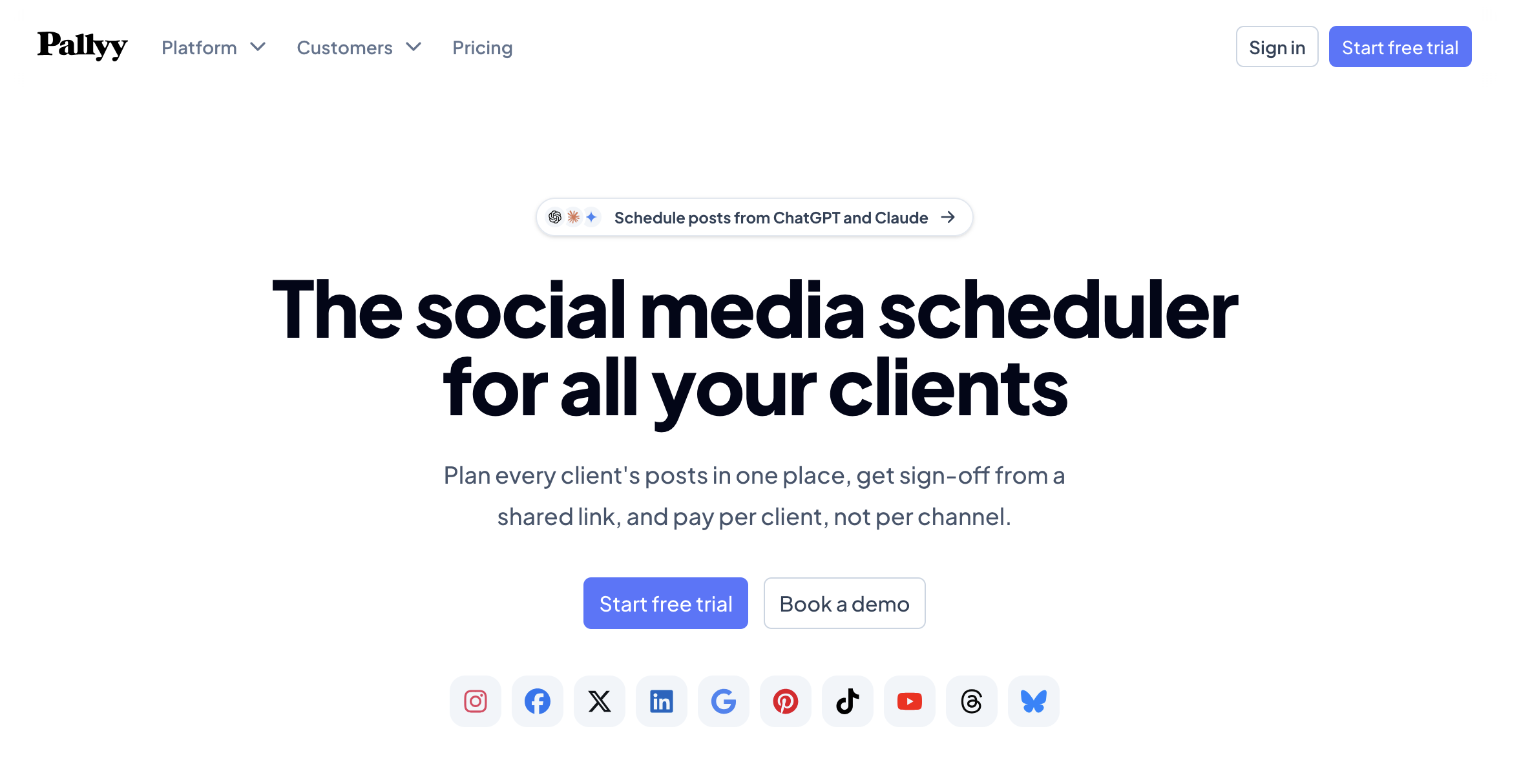
Pallyy is an all-in-one social media management tool that helps you plan, schedule, publish, and manage content across multiple social media accounts, all from one dashboard.
What makes it particularly interesting for freelancers and agencies? It goes beyond just scheduling posts. Pallyy also helps you manage clients, collaborate on content, get posts approved, and track your results.
So instead of juggling different tools for scheduling, content planning, and client approvals, you can keep most of your social media work in one place.
What Does Pallyy Do?
At its core, Pallyy is a social media scheduler. You create your posts, choose when they should go live, and Pallyy publishes them to your connected accounts (where automatic publishing is supported).
But there’s quite a bit more you can do:
- Plan and schedule content: Organize posts in a visual calendar and schedule them across different platforms.
- Manage multiple clients: Keep different brands, accounts, and content calendars organized in one place.
- Get client approvals: Share content with clients, collect feedback, and get their approval before publishing.
- Collaborate with your team: Give team members access to the accounts they’re working on.
- Track your results: See how your content performs with built-in analytics and reporting.
- Manage engagement: Keep up with supported comments and messages through the social inbox.
Basically, it takes care of a lot of the admin work that comes with managing social media, so you can spend more time on the actual content.
Who Is Pallyy Best For?
You can absolutely use Pallyy for your own business, but I’d say it’s especially interesting if you’re managing social media for other people.
✅ Freelance social media managers
If you’re managing several clients (and all their different social media accounts), Pallyy helps you keep everything organized without constantly switching between tools.
✅ Social media agencies
For agencies working with multiple clients and team members, features like shared calendars, client approvals, and team permissions can make collaborating a whole lot easier.
✅ In-house marketing teams and businesses
Even if you’re only managing your own brand, you can use Pallyy to plan content ahead of time, schedule posts across platforms, and keep track of what’s working.
Can You Manage Multiple Clients With Pallyy?
Yes! And this is why I find this tool so interesting for freelancers and agencies.
Pallyy uses something called Social Sets, which are essentially separate workspaces for your clients.
Let’s say you’re managing social media for five businesses. You can create five Social Sets, each with its own connected social media accounts, content calendar, and media library.
Here’s what you should know:
- Each Social Set supports up to 11 connected social media accounts across 10 platforms.
- You can switch between clients without leaving your Pallyy account.
- Team members can be given access to specific clients.
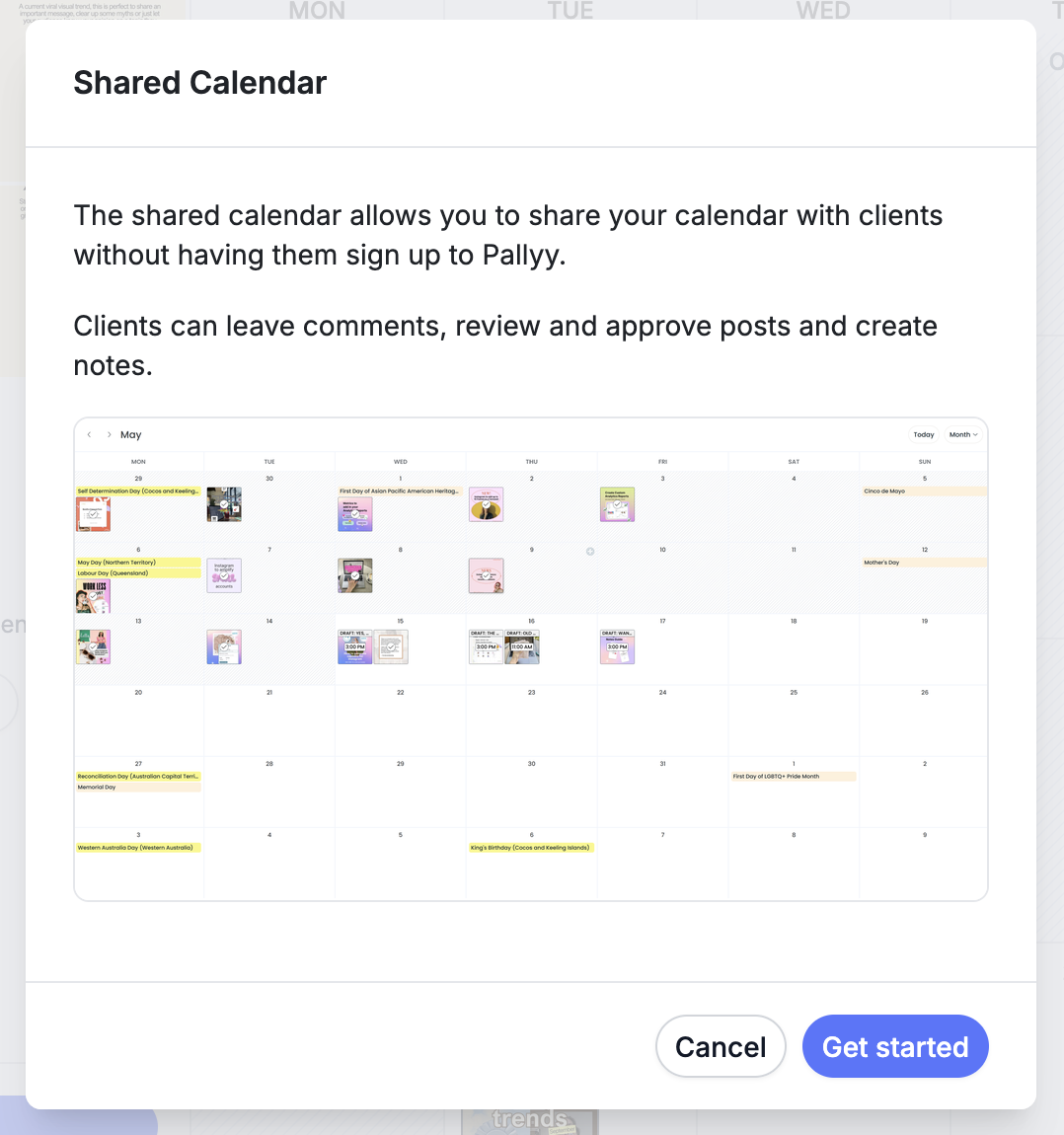
- Clients can review and approve content through a shared calendar without creating a Pallyy account.
And here’s another thing I like: Pallyy’s pricing is based on Social Sets, not individual social media accounts.
So if you’re managing Instagram, TikTok, and Pinterest for one client, those accounts can all live within the same Social Set.
We’ll get into the pricing details a little later!
Which Social Media Platforms Does Pallyy Support?
Pallyy currently supports 10 social media platforms, so you can manage most of your clients’ social media accounts from one place.
Here’s a quick overview:
| Platform | Supported Content Formats | Auto-Publishing |
|---|---|---|
| Posts, carousels, Reels, Stories | Yes* | |
| Posts, carousels, Reels, Stories | Yes* | |
| TikTok | Videos, images, carousels | Yes* |
| Pins | Yes | |
| Text, images, videos, carousels | Yes* | |
| YouTube | Shorts | Yes |
| Threads | Text, images, videos, carousels | Yes |
| X (Twitter) | Text, images, videos, carousels | Yes |
| Bluesky | Text, images, videos | Yes |
| Google Business Profile | Image and video updates | Yes |
*Some formats have additional requirements or publishing restrictions.
You can find the latest platform requirements and supported formats in Pallyy’s Help Center.
We’ll look at the individual features in more detail next!
2. How Does Pallyy Work?
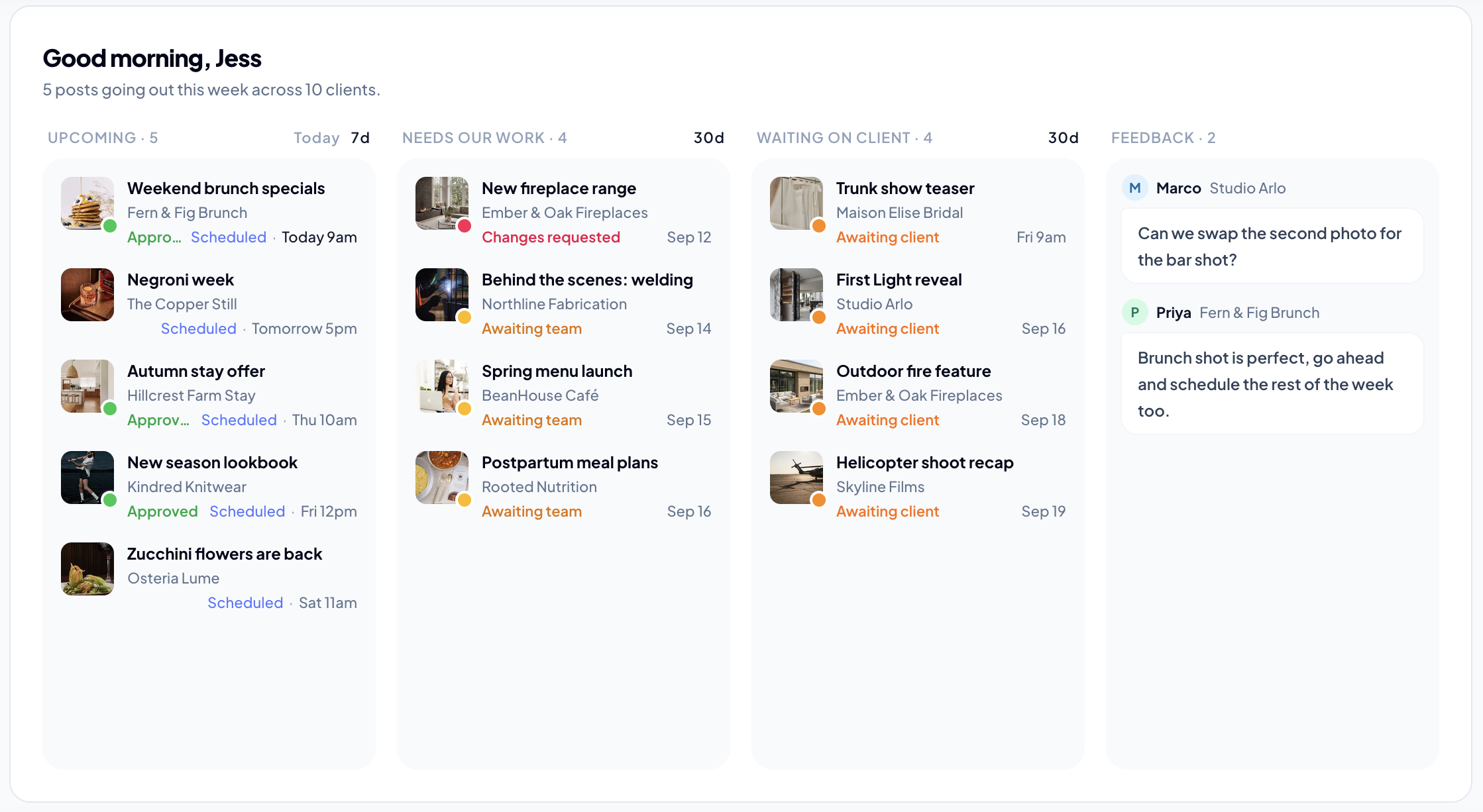
The idea is pretty simple: you can manage your entire social media workflow in one place, from planning your content to scheduling posts, getting client approvals, and tracking results.
Here’s what that looks like in practice!
Step 1: Connect Your Social Media Accounts
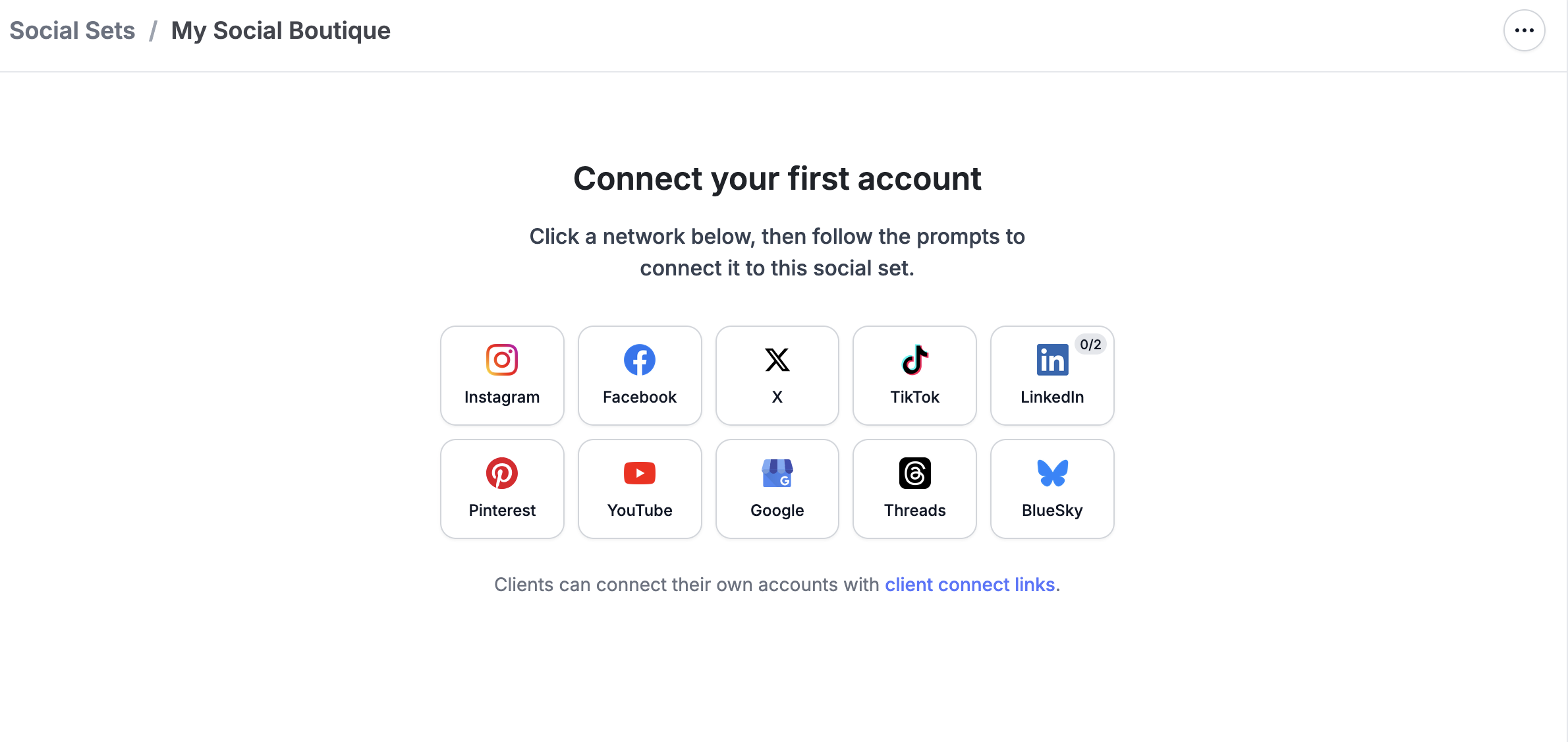
First, you’ll need to connect your social media accounts to Pallyy. You can add accounts from platforms like Instagram, Facebook, TikTok, Pinterest, LinkedIn, and more.
If you’re managing multiple clients, you can create a separate Social Set for each client. That way, every client has their own accounts, content calendar, and media library, and everything stays nice and organized.
Step 2: Plan and Organize Your Content
Once your accounts are connected, it’s time to plan your content!
You can upload photos and videos to Pallyy’s media library, save content ideas, and organize upcoming posts in the visual content calendar.
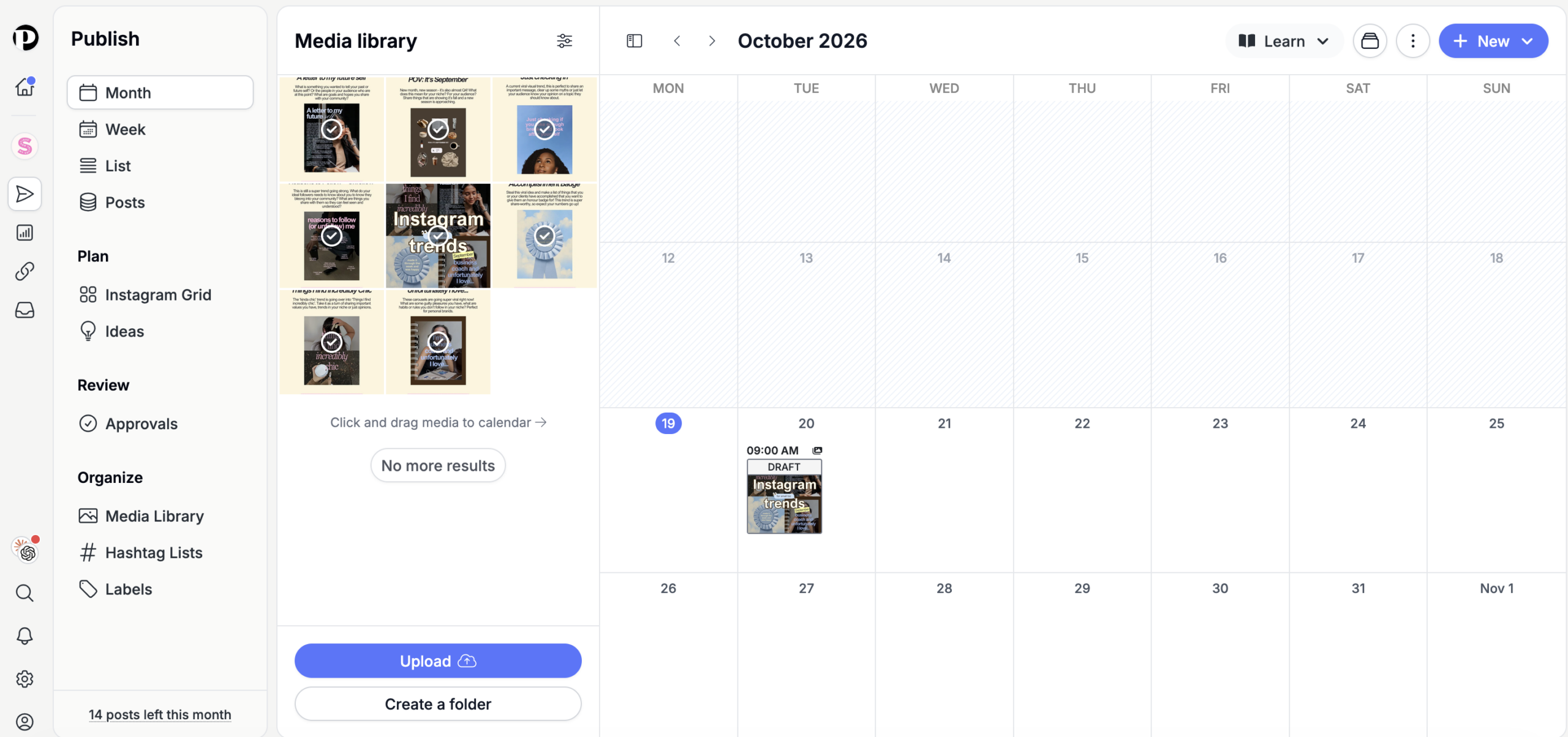
I particularly like that you can see what’s coming up and move scheduled posts around without having to start from scratch. Super handy when a client suddenly wants to change their posting schedule.
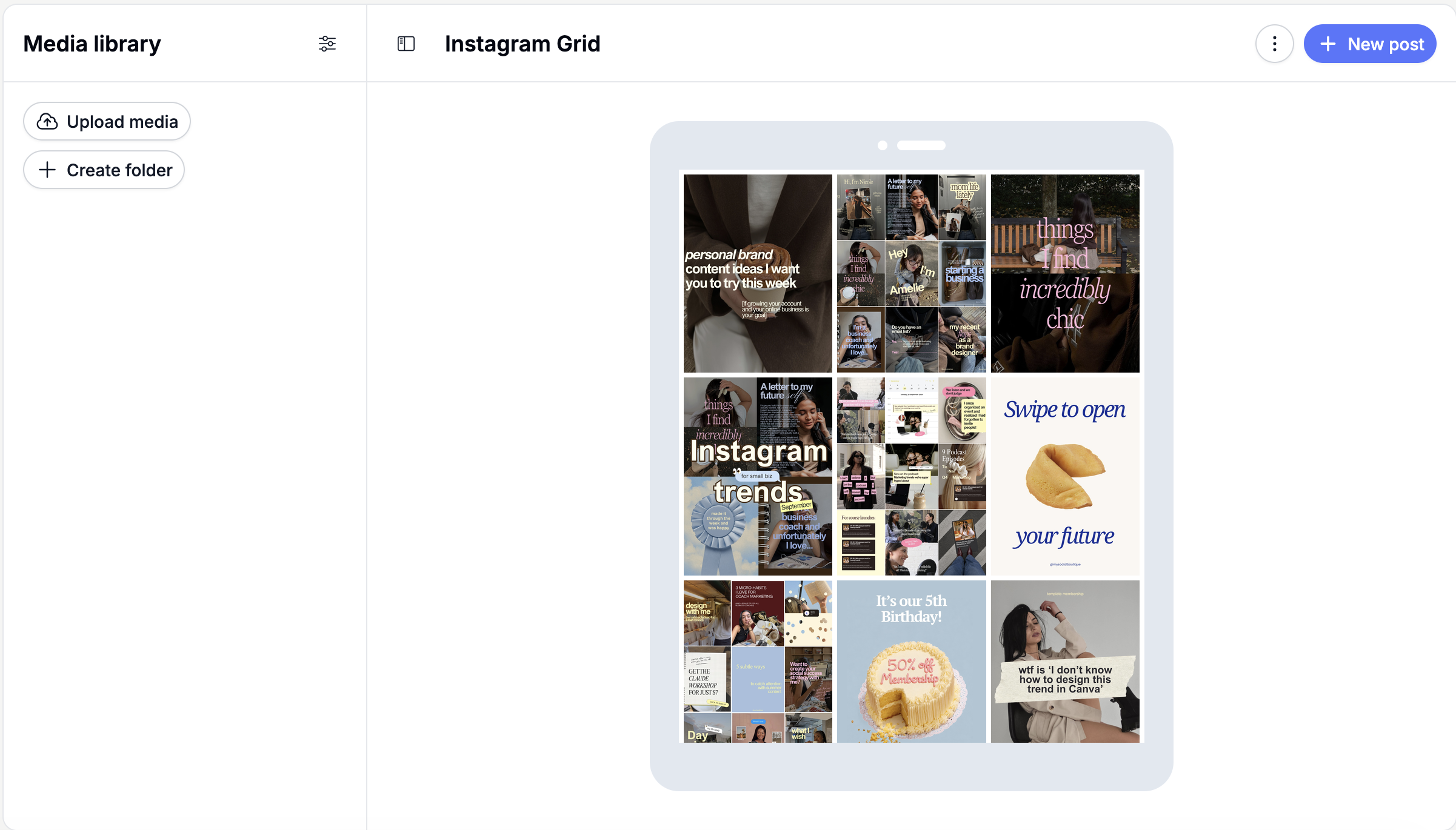
If you’re planning for Instagram, they even have a seprate grid preview, so you can see how your posts will look in the feed:
Step 3: Schedule and Publish Posts
When your content is ready, simply create your post, add your caption, and choose which platforms you want to publish it on.
You can also customize your content for each platform, so your Instagram caption doesn’t have to be identical to your LinkedIn post.
Then, choose your publishing date and time, and Pallyy will automatically publish your content when it’s scheduled to go live (as long as the platform and post format support auto-publishing).
Step 4: Collaborate With Clients and Get Approvals
If you’re managing social media for clients, this is where things get especially interesting!
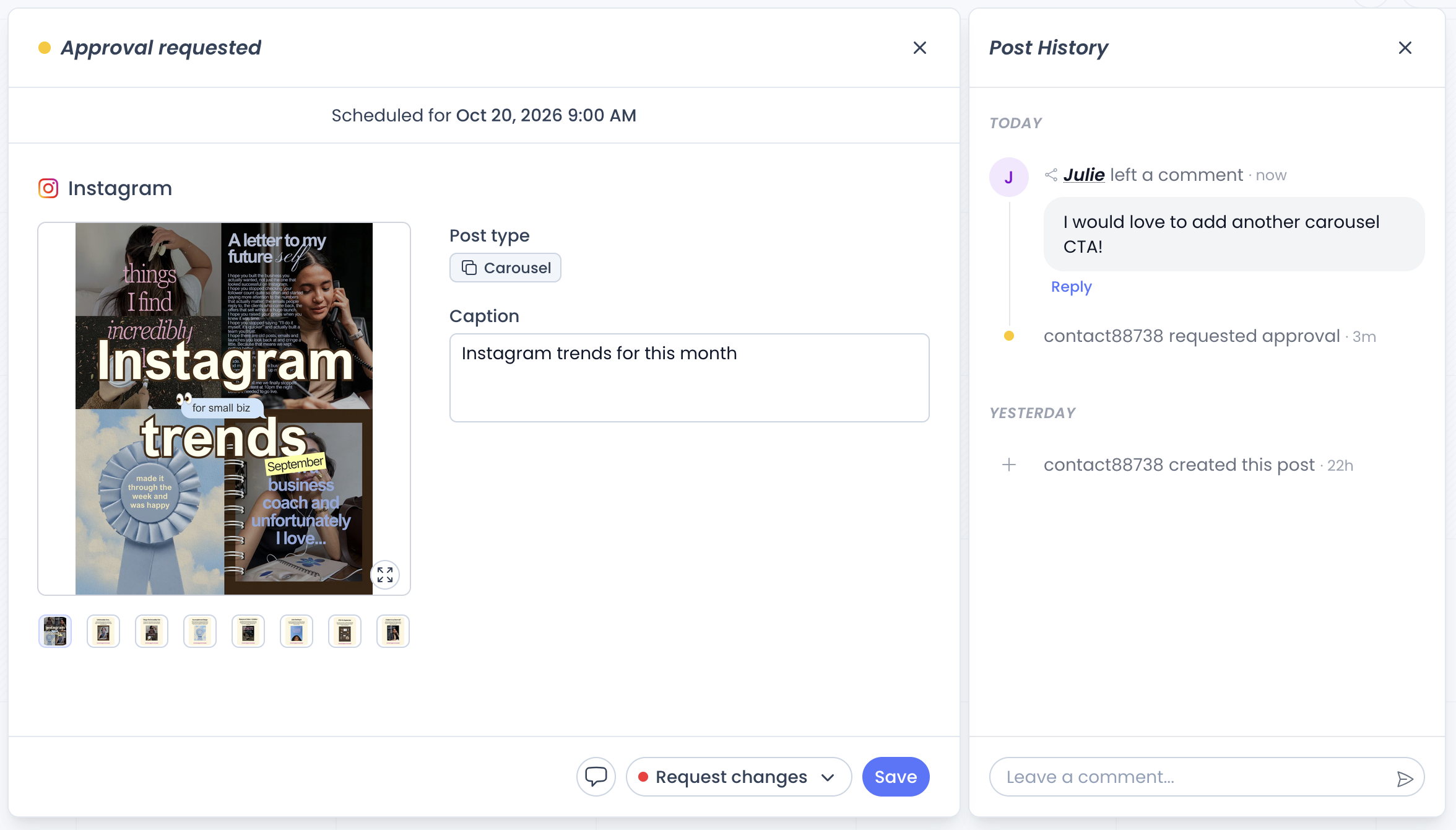
Instead of sending posts back and forth via email or Google Drive, you can share your content calendar directly with clients for review.
They can leave feedback, request changes, and approve posts without even needing their own Pallyy account.
That means fewer scattered messages and a much easier way to keep track of what’s approved and what’s still waiting for feedback.
Step 5: Track Performance and Report Results
Of course, your work doesn’t end once a post goes live!
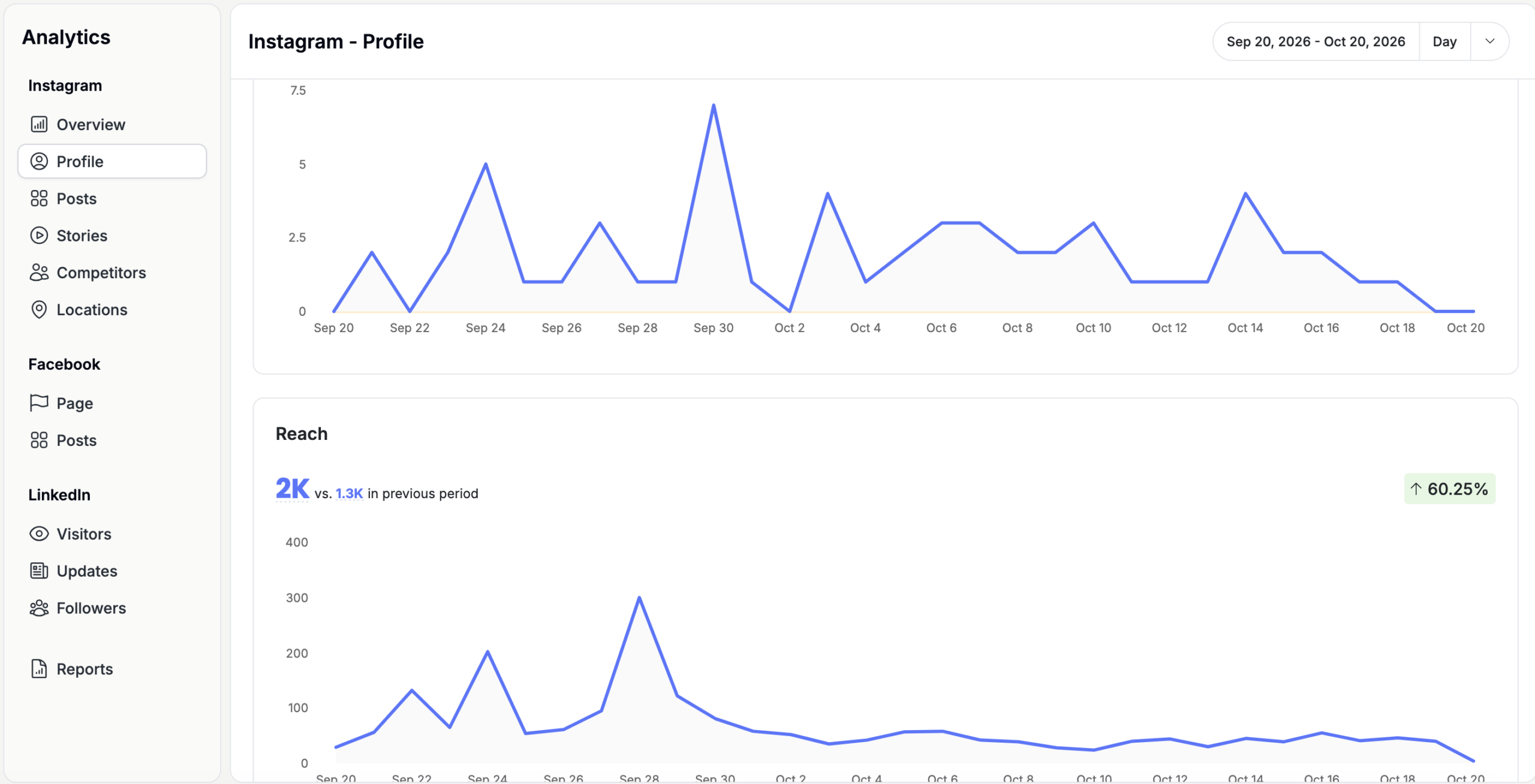
Pallyy also has built-in analytics that let you track how your content is performing, including metrics like reach, engagement, and account growth on supported platforms.
You can use these insights to see what’s working, adjust your content strategy, and create reports to share with your clients.
And that’s pretty much the whole process! Plan your content, schedule it, get approvals, and track your results, all without constantly switching between different tools.
Next, let’s take a closer look at the individual features and what you can actually do with them.
3. Pallyy Features Explained: Everything You Can Do
Now that we’ve covered how Pallyy works, let’s take a closer look at what you can actually do with it!
There are quite a few features to explore, but what I find most interesting is how they work together. You can go from a random content idea to a fully scheduled post, get your client’s approval, and check the results afterward, without having to manage everything in five different tools.
Here are the features worth knowing about, especially if you’re managing social media for clients.
Social Media Content Calendar
The content calendar is probably where you’ll spend most of your time in Pallyy. It’s where you can see all your upcoming posts, plan content ahead of time, and make changes to your posting schedule.
You can switch between different calendar views, including weekly and monthly layouts, depending on how you prefer to plan.
Some of the things you can do include:
- Plan across multiple platforms: See your upcoming Instagram, Facebook, TikTok, and other scheduled posts in one calendar.
- Drag and drop posts: Move scheduled content to another date without having to recreate the post.
- Plan campaigns: Organize upcoming launches, promotions, and regular content.
- Switch between clients: Each Social Set has its own calendar, so you’re only looking at the content for that particular client.
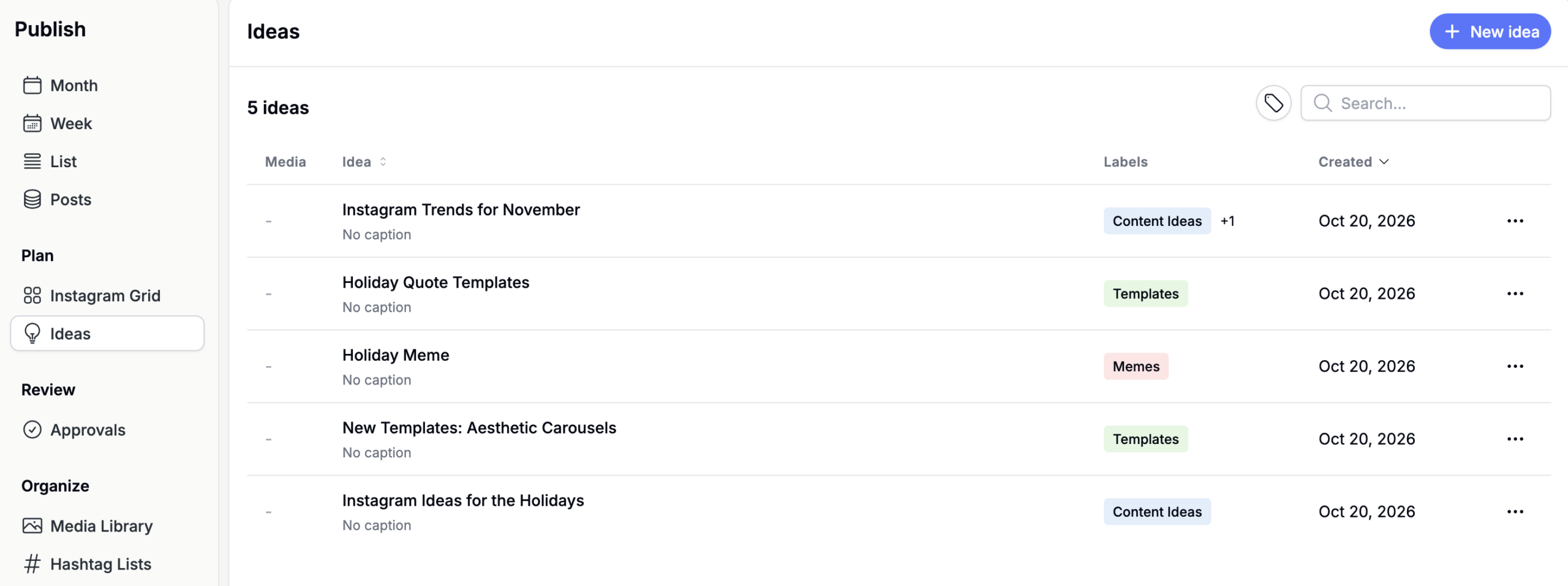
One thing I particularly love is Pallyy’s dedicated Ideas section! You can collect content ideas and brainstorm what to post before you’re ready to schedule anything.
And I think that’s such an important part of content planning. You don’t always have the time (or inspiration!) to create a finished post the moment an idea comes to mind. Having somewhere to save those ideas makes it much easier to plan ahead.
Social Media Scheduling & Auto-Publishing
Of course, scheduling is the main reason you’d use Pallyy!
You can prepare posts in advance, choose when they should go live, and let Pallyy handle publishing where auto-publishing is supported.
Some useful features include:
- Scheduling content across multiple social media platforms.
- Customizing captions and media for each platform.
- Saving your preferred posting times.
- Organizing upcoming posts in a scheduling queue.
- Rescheduling content when plans change.
Just keep in mind that some publishing options depend on the platform, content format, and your Pallyy plan.
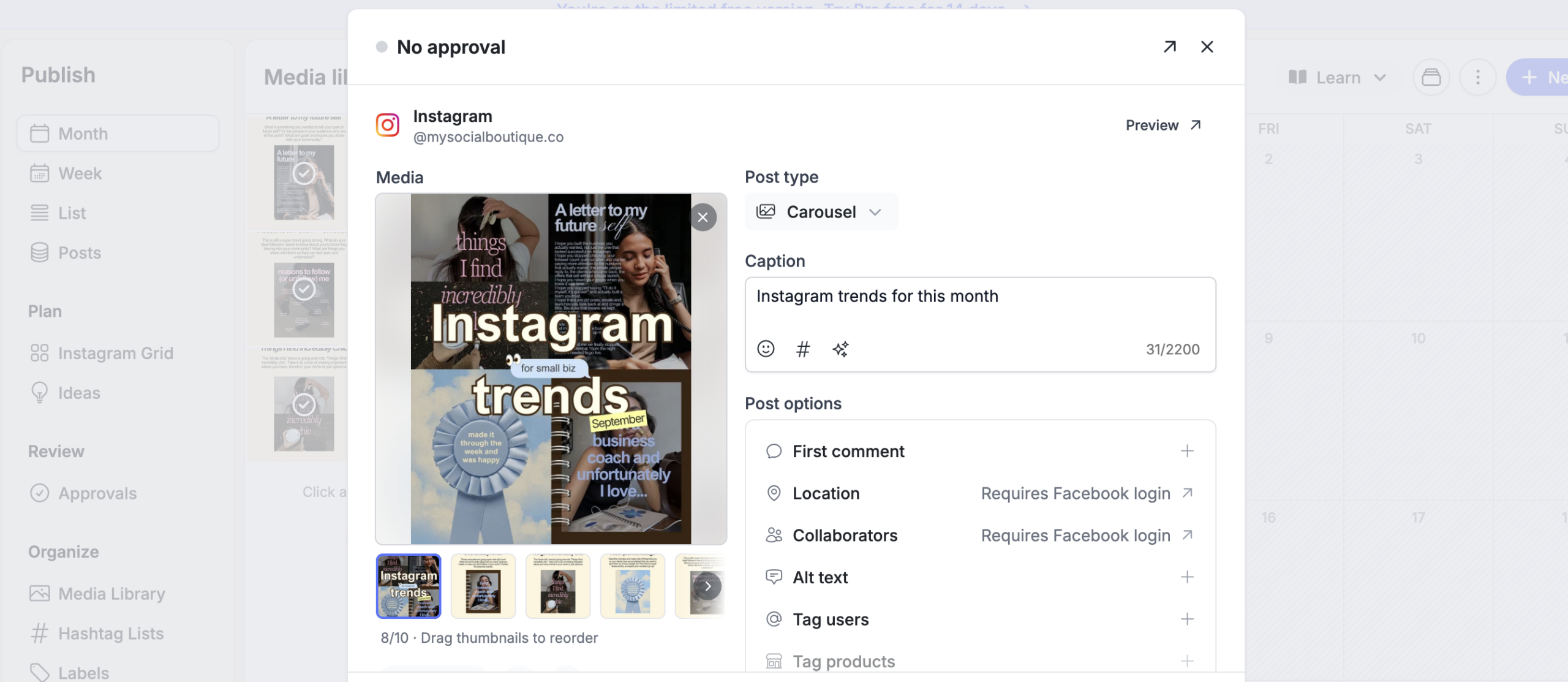
Instagram Feed Planner
If you’re managing Instagram accounts for clients, you’ll probably love this one!
Pallyy’s visual Instagram feed planner lets you preview how upcoming posts will look together before publishing them.
You can rearrange planned posts, check how your carousels, images, and Reels covers work together, and make sure your client’s feed looks consistent.
Super helpful if you’re working with brands that care about having a cohesive Instagram aesthetic!
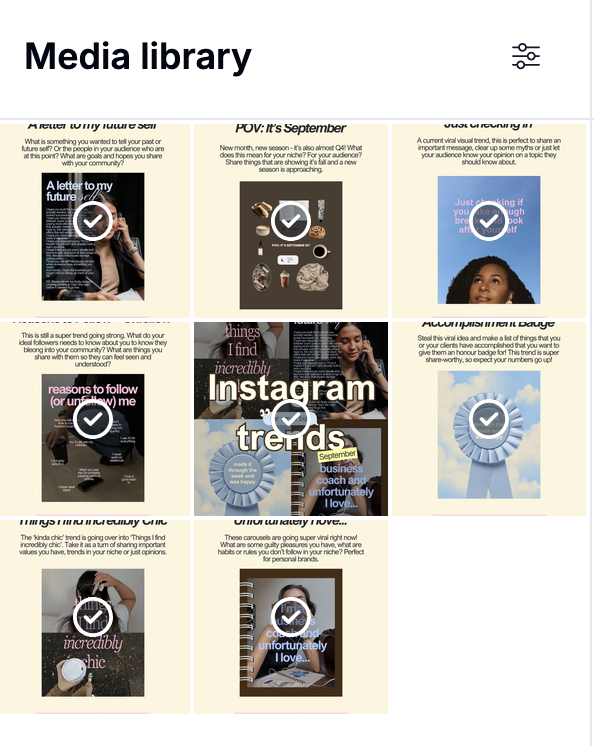
Media Library & Content Organization
No more digging through endless Google Drive folders to find that one photo your client sent three weeks ago.
Pallyy’s media library lets you upload, store, and organize your images and videos so they’re ready whenever you need them.
You can reuse existing assets for future posts, and because each Social Set has its own media library, your clients’ content stays separate and organized.
Content Ideas & Planning
I already mentioned the Ideas section, but it’s worth highlighting because content planning starts long before you schedule a post.
You can use it to collect ideas for:
- Educational posts and content pillars.
- Upcoming campaigns and promotions.
- Trending formats you want to try.
- Content requests from clients.
Pallyy also offers AI-assisted tools to help with tasks like writing captions, which can be handy when you need a little inspiration.
Client Approval Workflows
Okay, this might be one of my favorite features for social media managers!
Instead of sending posts back and forth through email or Google Drive, you can share content directly with clients for review. And they don’t even need a Pallyy account!
Here’s how it works:
- Prepare your posts and captions.
- Share the content calendar with your client.
- Let them review posts, leave feedback, or request changes.
- Make any necessary revisions.
- Get their approval before publishing.
For example, if you’ve prepared 12 Instagram posts for a client, you can share them all for review instead of sending 12 separate files.
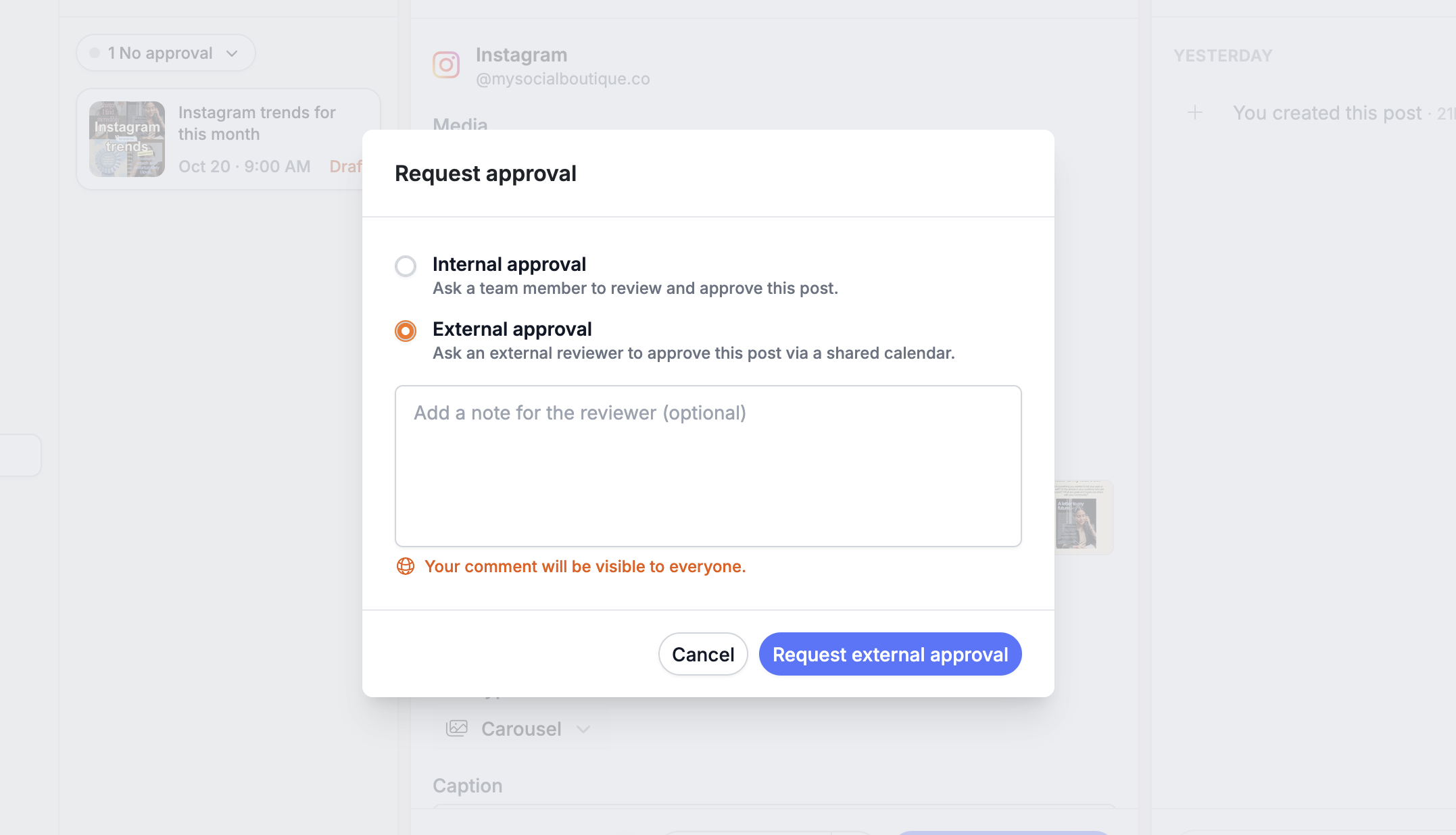
You can also keep track of which posts are approved and which still need attention.
Team Collaboration & Permissions
If you’re running an agency or working with other freelancers, Pallyy makes it easier to collaborate without sharing logins.
Depending on your plan, you can:
- Invite team members to your workspace.
- Give them access to specific client Social Sets.
- Manage roles and permissions.
- Collaborate on content planning and scheduling.
This is especially useful when different people are responsible for content creation, scheduling, and client communication.
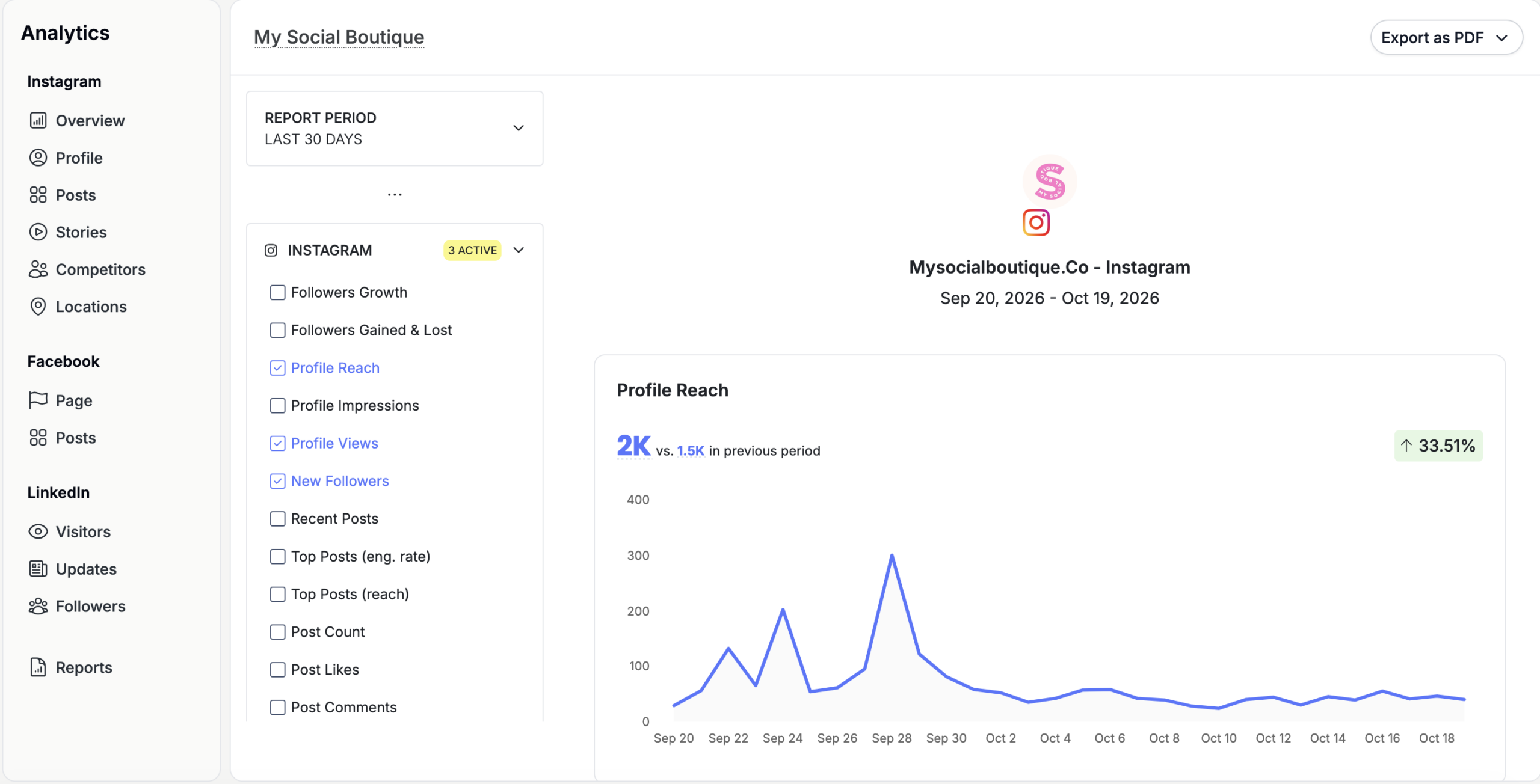
Social Media Analytics & Reporting
Once your content is published, you’ll obviously want to know how it’s performing!
Pallyy includes built-in analytics that help you track metrics such as:
- Engagement and reach.
- Follower growth.
- Individual post performance.
- Top-performing content.
You can also create and share performance reports with clients, which is super handy for your monthly reporting.
One thing to know: Pallyy’s analytics currently cover Instagram, Facebook, and LinkedIn, so you may still need to use native analytics for other platforms.
Social Inbox & Community Management
If you also manage comments and messages for your clients, Pallyy’s social inbox can save you from constantly switching between apps.
It lets you view and respond to supported social media interactions from one dashboard.
This is particularly useful if you’re managing engagement for several brands, although the available inbox features depend on the social media platform.
Additional Pallyy Features Worth Knowing
There are a few more features worth mentioning:
- Link in Bio Pages: Create customizable pages to share multiple links from your social media profiles.
- AI-Assisted Content Creation: Get help writing captions and generating content ideas.
- Saved Posting Times: Save your preferred publishing times to make scheduling faster.
- API Access: Connect supported Pallyy workflows with other tools and automations, subject to API availability and plan requirements.
Overall, what I like about Pallyy is that it doesn’t just help you schedule posts. It also helps you manage everything around them, from the first content idea to client approvals and performance reports.
And that’s especially useful when you’re managing more than one client!
4. Pallyy Pricing: How Much Does It Cost?
One of the things I find interesting about Pallyy’s pricing is that it’s built around Social Sets rather than charging for every individual social media account.
That’s particularly useful if you’re managing multiple platforms for the same client. Instead of paying separately for their Instagram, TikTok, and Pinterest accounts, you can keep them together in one Social Set.
But how much does Pallyy actually cost, and which plan makes the most sense for freelancers and agencies?
Is Pallyy Free?
Yes! Pallyy has a free plan that you can use for as long as you like. It’s a great way to explore the platform before committing to a subscription.
The free plan includes:
- 1 Social Set with up to 11 connected social media accounts.
- 15 scheduled posts per month.
- Image publishing and a visual content calendar.
- Basic analytics with 30 days of data.
- 200 MB of media storage.
However, features like video scheduling, carousels, client approvals, post ideas, and the social inbox require a paid plan.
I’d say the free plan is perfect if you’re managing your own accounts or just want to get familiar with Pallyy. But if you’re managing clients professionally, you’ll probably want to upgrade.
Pallyy Pricing Plans Explained
Pallyy offers four plans, depending on how many clients you’re managing and which features you need.
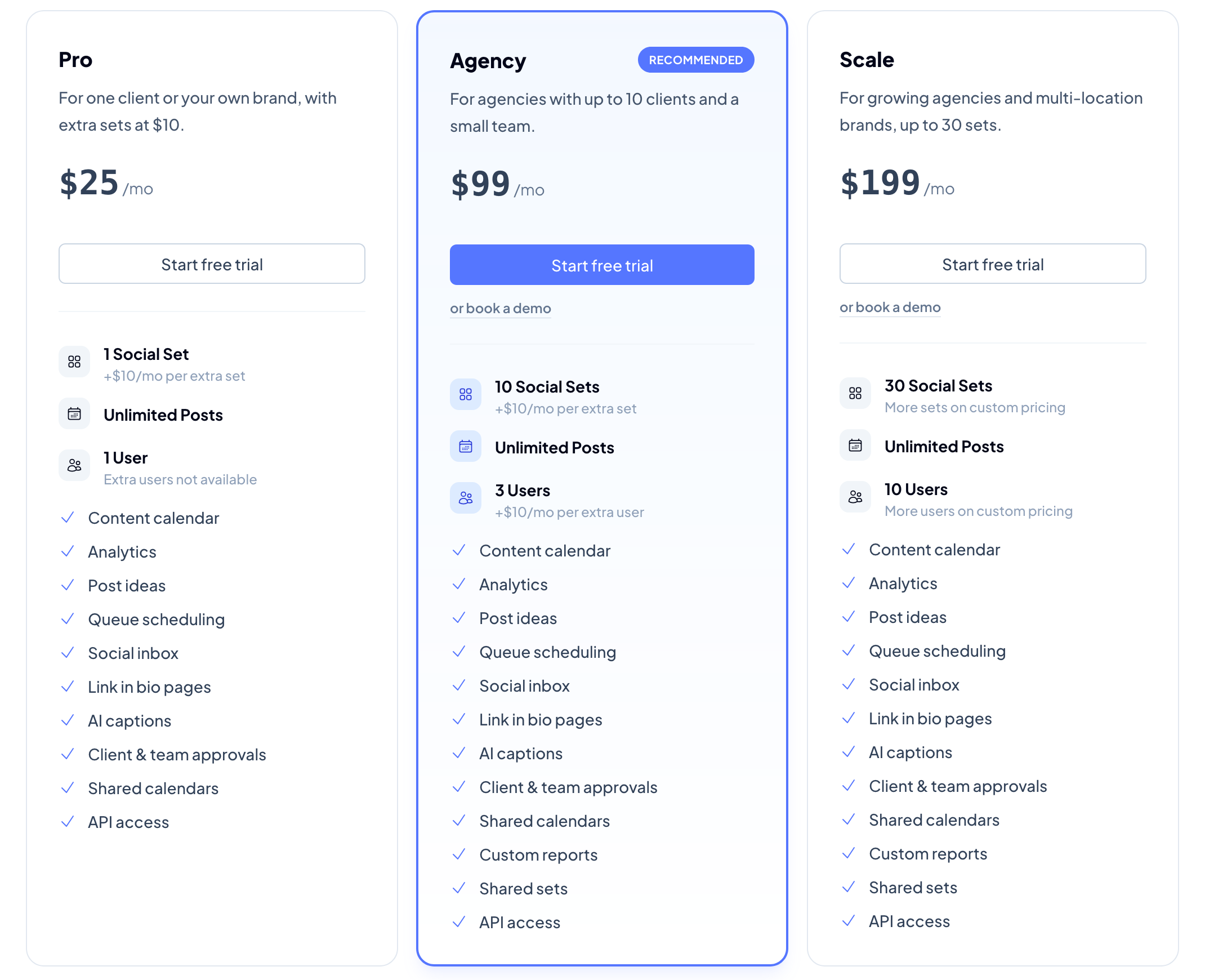
My take? If you’re a solo social media manager, Pro is a great starting point. You already get the important features like unlimited scheduling, client approvals, and analytics.
The Agency plan becomes more interesting once you’re managing several clients or working with a team, especially since it includes 10 Social Sets and custom reports.
How Much Does Pallyy Cost for Multiple Clients?
Here’s where Pallyy’s pricing gets interesting!
With the Pro plan, you can add extra Social Sets for $10 per month each. So you don’t necessarily need to upgrade to Agency as soon as you sign your second client.
For example:
| Number of Clients | Recommended Plan | Monthly Cost |
|---|---|---|
| 1 client | Pro | $25 |
| 3 clients | Pro + 2 Social Sets | $45 |
| 5 clients | Pro + 4 Social Sets | $65 |
| 10 clients | Agency | $99 |
These examples assume one Social Set per client and monthly billing. The Pro plan is limited to one user, while Agency includes three users and additional collaboration features.
So even if you’re managing five clients across several platforms, you could pay just $65 per month for Pallyy.
And if your agency grows, you can upgrade to Agency or Scale instead of rebuilding your entire workflow in another tool.
Does Pallyy Offer a Free Trial?
Yes! Pallyy offers a 14-day free trial of all its paid plans.
You’ll need to enter your payment details to start the trial, but you won’t be charged during those 14 days.
You can explore the features included in your chosen plan, including scheduling, approvals, and collaboration tools.
If you decide it’s not for you, simply cancel before the trial ends to avoid being charged.
And if you’d rather start without entering your card details, you can always use the free plan first.
Is Pallyy Worth the Money for Freelancers and Agencies?
I think Pallyy’s pricing makes a lot of sense if you’re managing social media for clients, especially when you consider everything that’s included.
You’re not just paying for a scheduling tool. You’re also getting content planning, client approvals, analytics, and other features that could otherwise require separate subscriptions.
My recommendation: If you’re a freelancer managing a handful of clients, I’d start with Pro and add Social Sets as needed. If you’re running an agency with multiple team members, Agency is probably the better fit.
And since you can try the paid plans for 14 days, you can test whether Pallyy works for your business before committing.
Frequently Asked Questions About Pallyy
Can I Manage Multiple Clients With One Pallyy Account?
Yes! Pallyy uses Social Sets to keep different clients and their social media accounts organized. You can manage multiple clients from one dashboard, with a separate content calendar and media library for each. Pricing depends on how many Social Sets you need, so you can start small and add more as your client list grows.
Can Pallyy Automatically Publish Instagram Posts, Reels, and Stories?
Yes! Pallyy supports automatic publishing for Instagram posts, carousels, Reels, and Stories. You’ll need a professional Instagram account (Business or Creator), and some publishing features have additional restrictions. Video and carousel scheduling also require a paid plan.
Do Clients Need a Pallyy Account to Approve Content?
Nope! You can simply send your clients a shared approval link where they can review posts, leave feedback, and approve content. No Pallyy account needed, which makes the whole process a lot easier for everyone!
Can I Schedule the Same Post to Multiple Social Media Platforms?
Absolutely! You can schedule one post across several platforms at once. And the nice thing is that you can customize the caption and media for each platform, so your LinkedIn post doesn’t have to look exactly like your Instagram post.
Does Pallyy Integrate With Canva?
You can easily use your Canva designs in Pallyy! Just create your graphics in Canva, download them, and upload them to Pallyy’s media library or directly into a post.
So if you’re already using Canva templates to create content for your clients, you can keep your usual design workflow and use Pallyy for planning and scheduling.
Can I Create and Share Social Media Reports With Clients?
Yes! Pallyy has built-in analytics and reporting tools that let you track things like engagement, reach, follower growth, and your best-performing posts.
You can also create reports to share with clients, which is especially handy for monthly check-ins. Just keep in mind that analytics aren’t available for every social media platform, and some reporting features depend on your plan.
Final Verdict: Is Pallyy the Right Social Media Scheduler for You?
If you’re managing social media for multiple clients, you know that creating content is only one part of the job. There’s also all the planning, scheduling, organizing, getting approvals, and reporting that comes with it. And honestly, that can take up SO much time!
That’s exactly where I think Pallyy can make a real difference.
One thing that really stood out to me during our test was just how easy and uncomplicated everything feels. Pallyy isn’t one of those huge, overwhelming platforms with a thousand features you’ll probably never use. Everything feels pretty straightforward, and you can quickly find what you need without spending hours figuring out how things work. I LOVE that!
And despite keeping things simple, it still has all the important tools you’d want as a social media manager: content planning, scheduling, separate workspaces for clients, approvals, and analytics.
Would I recommend Pallyy? If you’re a freelance social media manager or running a small agency, I’d definitely put it on your list of tools to try! Especially if you’re currently juggling several different platforms to manage your clients’ content.
Of course, the best social media scheduler is the one that actually works for your workflow. And the good news is that you don’t have to commit to a paid subscription to find out.